

How to Print Photos from a Digital Gallery: Share Event Photos

Article by
Gabi
Hi, I'm Gabi - Co-Founder of Bestever Pics. Thanks for visiting our blog. We are working hard to produce content which we hope resonates with you. Feel free to drop us a line on socials or via the contact form on the site.
The best event photos often come from guests, but they can end up scattered across messages, social feeds, and camera rolls. Knowing how to share event photos with guests starts with giving everyone one clear place to contribute. A QR code that opens a browser-based upload page can keep the process simple without asking guests to download an app or create an account.
This guide explains how to gather guest photos in one gallery, check access and download options, and choose images that meet your print provider’s requirements. Use the steps to turn candid snapshots into keepsakes without adding another complicated task for you or your guests.
Key Takeaways
- Choose a sharing method by weighing guest effort against how easily you can organise and revisit photos.
- Make clear who can view or add images when you share event photos with guests.
- Check whether gallery images are available as original files before choosing prints.
- Follow a simple process to select images and confirm your print provider’s requirements before ordering.
- Use a wedding QR code to direct guests to a browser-based album without requiring an app download.
How to share event photos with guests, and why one gallery helps
Gather guest contributions in one shared gallery, then review access and download options before choosing images to print. A clear upload route keeps candid photos together, while checking the original files and your print provider’s requirements helps you select images suited to the finished size.
Knowing how to share event photos with guests starts with choosing a clear destination for their pictures. Without one, a funny dance-floor moment might arrive in a text, a group shot might be buried in a social feed, and other images may stay on someone’s phone. Bringing contributions together gives you one place to revisit them instead of piecing the event back together across separate conversations.
What is a shared event photo gallery?
A shared event photo gallery is a digital album where a host gathers images contributed by guests, so people can view and revisit them in one place. It’s one of the options photo sharing platforms make possible, alongside social feeds and messaging tools. Gallery access, who can contribute, download options, and image quality depend on the provider. Check those details before choosing images for print.
Why do guests need an easy way to contribute?
Guests are more likely to follow through when the instructions are clear and uploading takes little effort. If they have to hunt for an email address, remember a social hashtag, or download an app, they may put it off and forget. A QR code that opens a browser-based upload page is one practical option. Tell guests where it leads and what to do once it opens.
Guest photos bring a different perspective from professional coverage. A photographer may focus on planned portraits and key moments, while friends capture a quick hug, table banter, or a view from the dance floor. Candid shots can complement a photographer’s carefully composed images, not replace them. For tips you can share with guests, see wedding photography tips for guests.
Make the gallery instructions specific: where to upload, whether guests can view other contributions, and whether images may be shared beyond the group. Clear expectations help guests feel comfortable contributing and give you a better-organised collection to review later.
Choose a guest-photo sharing method that fits your event
The best way to share event photos depends on who’s attending and how much sorting you’re willing to do later. A social hashtag may feel familiar, while a shared gallery can keep contributions in one place. Compare the steps guests need to take, how you’ll organise the images, and who can access them before deciding how to share event photos with guests.
| Method | Guest steps | Host organisation | Access and trade-offs |
|---|---|---|---|
| Shared link | Open the link and follow its instructions | Depends on where the link sends contributions | Easy to send to remote guests; links can be forwarded |
| Social hashtag | Post with the agreed hashtag | Search or browse posts to gather images | Familiar to some guests, but visibility depends on platform and account settings |
| Messaging group | Join the group and send photos | Images sit among chat messages | Useful for a small group, but contributions can be harder to sort |
| QR-linked browser gallery | Scan the code and follow the upload steps | Contributions can be gathered in a gallery | Avoids an app download when browser uploading is supported; check access and download options |
Are QR codes or shared links easier for guests?
A QR code can point guests to an upload destination, making it handy to display at a venue or include on a printed event sign. A shared link can work well for remote guests or anyone viewing an invitation on the same device. Neither method guarantees contributions or works identically on every device, so give guests clear instructions and a backup way to reach the destination.
When does an app-free gallery make sense?
For a one-off event, some guests may not want to install an app they’ll use only once. A browser-based gallery can remove that extra step if the provider supports it and guests can access the page on their devices. Consider your guests’ habits, privacy needs, and how much time you can spend organising photos. For more collection ideas, read these event photo collection tips.
Consider the setting, too. A private family gathering may call for a different access approach than a public-facing community event. Depending on account and post settings, social posts can reach people beyond the invited group. A gallery may offer a more contained way to collect images, but check who can view and contribute before sharing instructions.
If a QR-linked wedding album suits your plans, explore this private wedding photo gallery option. Check its access and download details before choosing it.
Check access, privacy, and image quality before printing
A gallery can make collecting event photos easier, but check how it handles access and image files before inviting guests or choosing prints. The photo you see on screen may be a preview, not the original downloadable file. Details vary by provider, so confirm them in the gallery settings or help information instead of assuming every image is ready to print.
How can you tell whether a gallery image is printable?
Open the image’s download options and check whether you can access the original file and its dimensions. Compare the file with your chosen print provider’s current requirements for file type and image size. A small screen preview can look crisp on a phone but appear blurry or pixelated when enlarged, especially if the image is cropped heavily.
Before selecting an image, zoom in and check that faces and key details are in focus. Look for motion blur, dark shadows, harsh lighting, and crops that cut off important parts of the scene. Match the image to the print dimensions you want, since a crop that works for one size may not suit another.
Print-worthy checklist: Choose a sharp, well-lit image with a suitable crop, an accessible original file, and dimensions that meet your print provider’s current requirements.
What should hosts check before sharing a gallery?
Review who can view the gallery and who can add photos. Tell guests whether their contributions will be visible to other viewers and explain how to upload. Before sharing, read the provider’s information about how it handles submitted images, including any options for removing them or changing access later.
Clear instructions help guests make an informed choice. For example, tell them if the gallery is intended for invited guests only, and avoid describing it as private unless its settings support that. If you’re planning your collection process, these event photo collection best practices can help you prepare guest instructions.
Keep the checks practical: confirm gallery permissions, test the upload route, and verify download access before choosing favourites. These steps matter whether you’re collecting photos for a wedding, a school celebration, or a work event. Once you know what you can download and who can see the images, you can make print choices with fewer surprises.
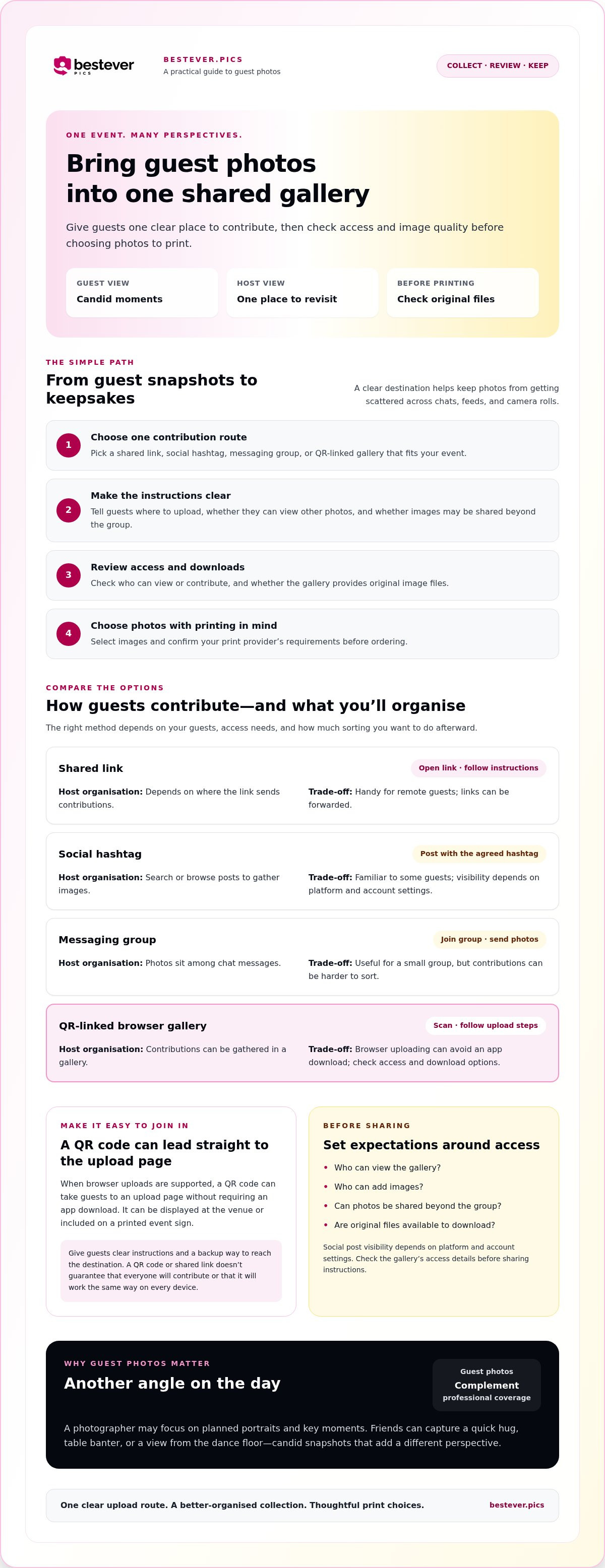
How to print photos from a digital gallery: follow these steps
A good plan for how to share event photos with guests gives you a collection to choose from. Printing takes a few extra checks: a gallery preview isn’t always the original file, and print providers set their own requirements. Use this workflow to choose meaningful moments and check image quality and cropping before ordering.
- Open the gallery and check download access. Select an image and look for an option to download the file. Confirm whether the gallery makes the original available before assuming a displayed image can be printed. If you can’t find a download option, check the provider’s guidance or ask the gallery host.
- Shortlist the moments you want to keep. Look for clear focus, good lighting, and details that matter to you, such as a candid guest interaction or a group portrait. A favourite memory can still be worth keeping if it isn’t technically perfect, but check its limitations before choosing a large print.
- Check the file and dimensions. Review the downloaded image rather than judging it only by the gallery preview. Compare its dimensions and file type with your print provider’s current requirements. Enlarging a small image can reveal blur or pixelation that was hard to notice on a phone.
- Match the orientation and crop to the print. Decide whether the image works best in portrait or landscape, then compare its composition with your intended print dimensions. Check that faces and important details won’t be cut off. Keep an unedited copy where available before applying edits or crops.
- Upload or transfer the selected files as directed. Follow the print provider’s current instructions for submitting images. Review its guidance on dimensions, accepted formats, cropping, and finishing, since these can vary between providers and print types.
- Review the preview before ordering. Inspect the final crop for cut-off faces, awkward framing, or details that have become hard to see. Make adjustments if the provider allows them, then confirm the order only when the preview looks right.
If downloads aren’t available, contact the gallery provider or host to ask about permitted ways to access the files. Don’t rely on a screenshot of the gallery as a substitute for an original image; it may not have enough detail for the print you want. Checking before checkout can help you avoid ordering a size that doesn’t suit the file.
Make guest photo sharing simple, then keep the memories
A clear plan for how to share event photos with guests has two parts: make uploading straightforward, then decide how you’ll review and keep the pictures. Tell guests where to contribute, gather their images in one gallery, check who can access it, and confirm each chosen file before printing. A simple upload route means guests can contribute candid moments without leaving you to chase photos across chats later.
How can hosts encourage guests to share photos?
Put the upload instructions somewhere guests will notice, such as on a welcome sign or event table. Keep the message brief and specific: “Scan this code to add your event photos to the shared album.” If you’re using a QR code, check that it leads to the intended upload destination and provide a written link for guests who can’t scan it.
For example, Bestever.pics lets hosts create a QR code that guests scan to upload photos to a web-based shared album without downloading an app. Choose a spot guests are likely to see, and browse these creative QR code display ideas for inspiration.
What should you do after the event?
Once contributions have come in, review the gallery and shortlist the moments you want to keep. Check each image’s download access and file before selecting a print size, then follow the print provider’s current instructions to prepare and submit it. A gallery preview doesn’t confirm that an original file is available or suitable for every print dimension.
Consider the intended audience before sharing the gallery again. A family celebration may call for a different sharing choice than a work event, so check the access settings and let guests know who can view the collection. You can keep the gallery available to the invited group or limit further sharing, depending on the options the provider offers.
For a wedding, a QR code on a welcome sign can direct guests to the web-based album while a short instruction explains how to contribute. Afterward, the couple can revisit the collection, choose favourites, and check the files before ordering prints. If you’re planning a wedding, you can explore the private wedding photo gallery as one option for gathering guest photos.
Make room for the moments worth keeping
A shared gallery gives guest photos one organised home instead of leaving candid moments scattered across messages and personal albums. Choose a sharing method that suits your guests, make the upload instructions clear, and check who can view or contribute before sharing the gallery.
Knowing how to share event photos with guests is only the first step. Before ordering prints, confirm that you can download the image file, check its focus and lighting, and compare its dimensions and crop with your print provider’s current requirements. A gallery preview may not be the original file, so verify each favourite before choosing a print size.
Bestever.pics lets guests scan a host-created QR code and upload through a web-based experience without downloading an app. Its guest photo-sharing service is designed for weddings as well as corporate, sports, and community events. After the event, review the gallery, choose the images you want to keep, and share access only with the audience you intend.
With a clear upload route and a careful print check, candid snapshots can become keepsakes you’ll be glad to revisit. When deciding how to showcase printed pieces at home, explore Large 45-Inch Modern Wall Shelves to display your collection. Choose the moments that feel like your event and enjoy keeping them close.
Frequently Asked Questions
How do I share event photos with guests?
Choose one clear place for guests to upload or view photos, then share its link or QR code with simple instructions. Explain who can access the gallery and whether guests can see other contributions. After the event, review the images and check which files you can download. Before ordering prints, compare each selected file with your print provider’s current requirements for format, dimensions, and cropping.
Can guests upload event photos without downloading an app?
Yes, some photo-sharing services let guests upload through a web page in their browser. Bestever.pics, for example, lets guests scan a host-created QR code to contribute to a shared digital album without downloading an app. The steps depend on the service and gallery settings, so test the link or QR code on a phone before the event. Don’t assume every device or browser will behave identically.
How do I print photos from a digital gallery?
First, check whether you can download the images and whether the available files meet your needs. Shortlist your favourites, then inspect focus, lighting, and cropping at the print size you’re considering. Follow your print provider’s current instructions for accepted file formats and dimensions, and review its preview before confirming an order. If downloads are restricted or unavailable, ask the gallery provider what options are permitted.
Will photos from a digital gallery be high enough quality to print?
Not always. A gallery preview may differ from the original upload, and print suitability depends on the image and how the service handles its files. Check the actual downloadable file and its dimensions, then compare them with your print provider’s recommendations. If the original isn’t available or you’re unsure about the file, ask the gallery provider before ordering, particularly for larger prints where blur or pixelation may be more noticeable.
What is the easiest way to collect candid photos from event guests?
Give guests one clear upload route and a short instruction they can follow during the event. A QR code can direct them to a browser-based gallery, while a direct link can help guests who aren’t near a sign. Keep expectations realistic: not everyone will contribute. Guest snapshots capture informal perspectives and can complement professional photography, but they aren’t a replacement for coverage you’ve arranged.
Can I print photos shared by guests on social media?
Possibly, if you can access a suitable image file and have permission from the person who took or shared it. A visible social media post isn’t automatically permission to reproduce the photo, and the platform may display a resized version. Ask the photographer or uploader for approval and, if possible, request the original file. Then check that file against your print provider’s current requirements before submitting it.
How can I help guests use a photo-sharing QR code?
Place the QR code somewhere guests will notice and add a brief instruction explaining where it leads and what to do. Test the full upload process on a phone before the event, then offer a direct link as a backup for anyone who can’t scan the code. Keep the message simple. For more planning suggestions, see best practices for collecting event photos.
Planning an event? Explore Bestever.pics’ app-free guest photo gallery and see whether it fits the way you want to collect photos.